

Display Company Announcements on Screens That Work
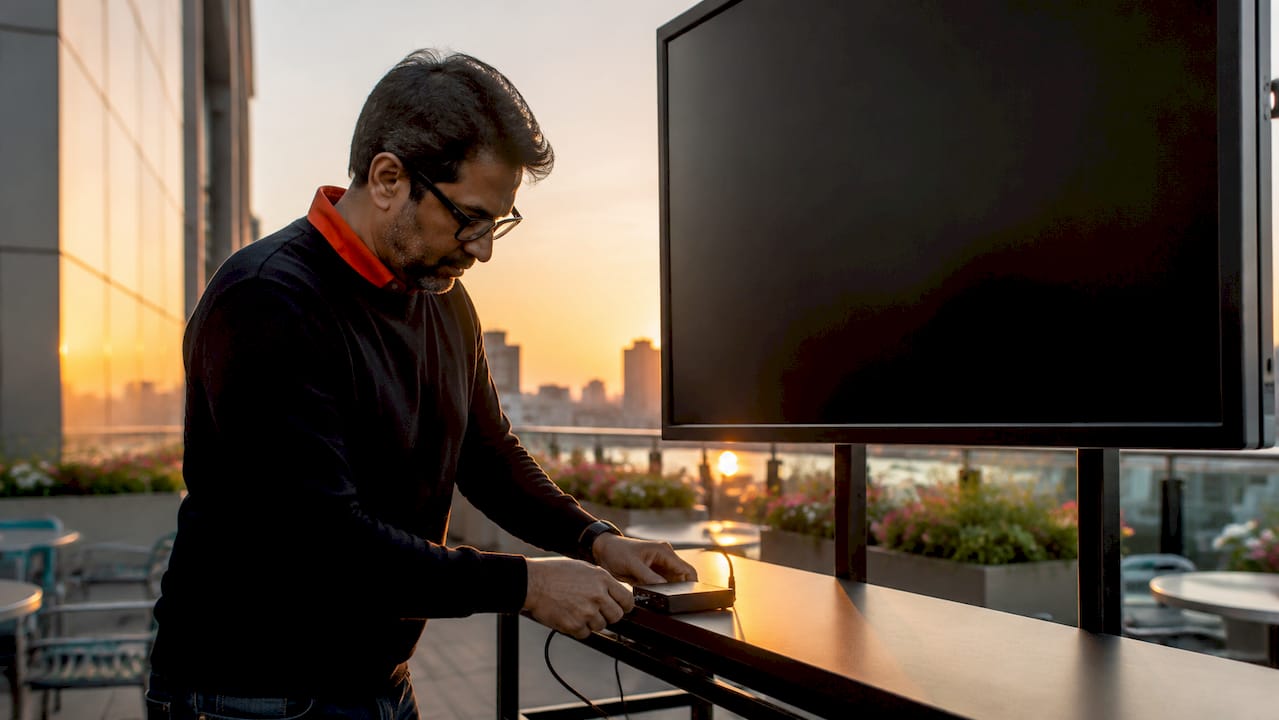
Digital signage is the standard method businesses use to display company announcements on screens across offices, lobbies, gyms, and retail floors. Unlike email or printed notices, digital signage connects directly to tools like Microsoft 365, Google Workspace, and SharePoint to push real-time updates automatically. The result is a communication channel that stays current without manual effort. Platforms like Valotalive and SpinetiX have made it practical for managers to run targeted, dynamic content across every screen in a building from a single dashboard.
What tools do you need to display company announcements on screens?
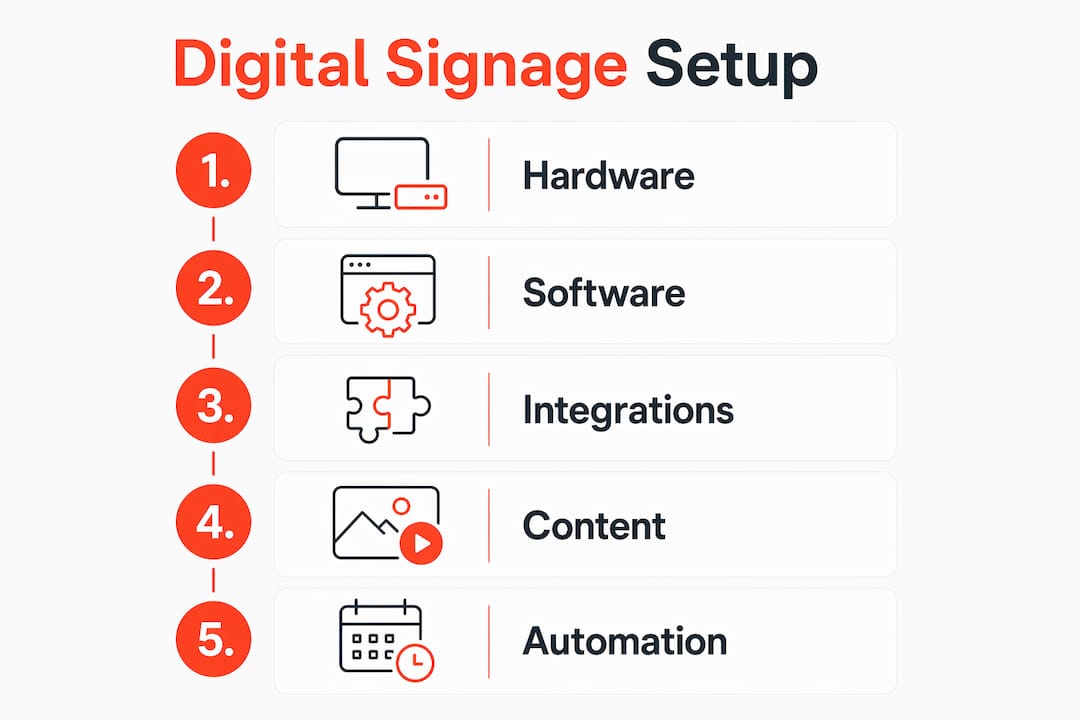
The right setup combines hardware, software, and integrations. Get any one of these wrong and your screens become expensive wallpaper.
Hardware: matching screens to spaces
Digital signage hardware ranges from tablets mounted at meeting room doors to large video walls in lobbies, each chosen based on content type and viewer distance. A 10-inch tablet works for a room booking display. A 75-inch commercial display works for a lobby announcement board. The hardware choice shapes how much information you can show clearly and how far away viewers can read it.

Media players are the brains behind the screen. Devices like the BrightSign HD series or a dedicated Android media player connect to your display and run the signage software. Some platforms, including Signstream, operate directly on smart TVs, which removes the need for a separate media player entirely.
Software platforms worth knowing
Platform | Best For | Key Integration |
Valotalive | Microsoft 365 environments | SharePoint, Teams, Power BI |
SpinetiX | Enterprise-grade deployments | REST APIs, custom data feeds |
VuePilot | Multi-site management | Google Workspace, cloud sync |
Signstream | SMBs and multi-screen networks | Cloud-based, no extra screen fees |
Each platform handles content scheduling, screen grouping, and layout design. The difference comes down to how deeply they connect to your existing IT stack.
Integrations that make automation possible
Modern digital signage platforms automate announcements by integrating directly with Microsoft 365, Google Workspace, and ERP systems. This means a news post published in SharePoint can appear on your lobby screen within minutes, with no manual copy-paste required. That automation is the real value of a connected platform.
Security matters here too. IT-integrated digital signage that uses Single Sign-On and secure API connections reduces manual re-keying and errors. Look for platforms that support SAML2 authentication and Microsoft Graph API access. These features let your IT team manage signage access the same way they manage any other enterprise application.
Pro Tip: If your organization uses Microsoft Teams for internal communication, a platform with Teams integration can pull channel updates directly to your screens, keeping announcements consistent across digital and physical channels.
Cloud-based platforms give you the ability to update screens from any device, anywhere. For multi-location businesses, cloud-based signage removes the need for on-site IT visits every time content changes.
How do you connect content sources to automate announcements?
Automation is what separates a useful signage system from one that gets ignored after the first month. Here is a practical setup process for connecting your communication tools to your screens.
Choose your content sources. Identify where your announcements already live. Most organizations use SharePoint for company news, Outlook for calendar events, and Teams or Slack for team-level updates. Your signage platform should connect to at least two of these.
Install the platform connector. Platforms like Valotalive use Microsoft Graph API to pull SharePoint news and Outlook calendar data automatically. You authorize the connection once, and the platform handles the rest. No ongoing manual exports are needed.
Set up content zones on each screen. Divide your screen layout into zones. One zone shows live SharePoint news. Another shows the Outlook calendar for the day. A third might display a live Power BI KPI dashboard. Screen zones for different data types keep static policy messages separate from live KPIs, which maintains clarity and holds viewer attention.
Create an approval workflow. Not every department should publish directly to every screen. Set up a review step so that a communications manager or IT admin approves content before it goes live. This prevents errors and keeps messaging consistent.
Schedule content by time and location. Automated playlists and scheduling ensure the right messages play on the right screens at the right times. A morning safety briefing for the production floor does not need to run in the executive conference room at 3 PM. Scheduling by shift or time of day keeps content relevant.
Test and verify delivery. Before going live, confirm that each screen is pulling the correct content. Most platforms include a remote preview feature that shows exactly what each screen is displaying at any given moment.
Content Source | What It Feeds to Screens | Update Frequency |
SharePoint News | Company announcements, HR updates | On publish |
Outlook Calendar | Meeting schedules, room bookings | Real-time sync |
Power BI | KPIs, sales figures, operations data | Configurable refresh |
Manual uploads | Event posters, one-off notices | On demand |
Pro Tip: Use a live news feed integration alongside your internal content. Mixing curated industry news with company announcements gives employees a reason to look at the screens even when internal news is slow.
What are best practices for designing announcement content?
Good content design is what keeps people reading your screens instead of walking past them. The most common mistake managers make is treating digital screens like printed posters. They are not the same medium.
Segment content by screen location
Targeted content increases audience engagement and avoids generic messages that get ignored. A lobby screen should show visitor-friendly content: company values, event schedules, and welcome messages. A production floor screen should show safety updates and shift KPIs. A cafeteria screen can show the daily menu alongside company news. Matching content to location is the single highest-impact change most organizations can make.
Balance static and dynamic content
Overloading screens with too much information is a common mistake. Split-screen layouts that show static content alongside dynamic data are more effective. Visual balance prevents viewer fatigue and improves message retention. A clean layout with two or three zones outperforms a cluttered screen trying to show ten things at once.
Layout Type | Best Use Case | Engagement Level |
Full-screen single message | Emergency alerts, major announcements | High |
Split-screen (2 zones) | News + calendar, KPIs + company updates | High |
Multi-zone (3+ zones) | Lobbies with diverse audiences | Medium |
Ticker only | Background info, stock or weather | Low |
Empower departments without losing control
Allowing departments to own their content through structured approval workflows prevents central bottlenecks. The HR team can manage benefits announcements. The operations team can manage floor KPIs. The marketing team can manage brand content. Each team works in their own content area, and a central admin approves before publishing. This approach keeps information current while maintaining brand consistency.
Giving departments ownership also reduces the workload on your communications team. Instead of one person managing all content for 20 screens, you distribute the effort across the people who know their subject best.
What are common pitfalls when showing announcements on screens?
Even well-planned digital signage deployments run into problems. These are the most frequent ones and how to avoid them.
Treating screens as static posters. Corporate screens used as dynamic communication hubs outperform those looping static slides. If your content has not changed in two weeks, your screens have stopped working for you.
Skipping automation. Manual updates create errors and stale content. If someone has to log in and change a slide every time there is a new announcement, it will not happen consistently. Connect your screens to live data sources from day one.
Ignoring screen health monitoring. A screen that has gone dark or frozen is worse than no screen at all. Use your platform’s remote monitoring tools to get alerts when a display goes offline. Most enterprise platforms include this feature.
Weak access controls. Without proper role-based permissions, anyone with login access can push content to any screen. Set up user roles that limit who can publish to which screens, and require approval for anything going to public-facing displays.
No content retirement schedule. Announcements about last month’s event still running on screens this month destroy credibility. Set expiration dates on every piece of time-sensitive content when you schedule it.
Pro Tip: Run a monthly content audit. Pull a report from your signage platform showing what is currently live on each screen. You will almost always find outdated content that someone forgot to remove.
Key takeaways
Effective screen announcements require connected platforms, targeted content, and automated workflows working together from the start.
Point | Details |
Connect to existing tools | Integrate with Microsoft 365 or Google Workspace to automate content delivery without manual updates. |
Match content to location | Show safety KPIs on production floors and visitor info in lobbies to keep messaging relevant. |
Use split-screen layouts | Divide screens into zones for static and dynamic content to prevent viewer fatigue. |
Give departments ownership | Structured approval workflows let teams manage their own content while central admins maintain brand control. |
Monitor and retire content | Set expiration dates and use remote monitoring to keep screens accurate and operational. |
The part most guides skip: who actually owns the screen
Most articles about digital signage focus on the technology. After working with businesses across retail, hospitality, and corporate environments, the bigger challenge is almost always governance, not software.
The organizations that get the most out of their screens are the ones that answer one question clearly: who is responsible for what appears on each screen? When that answer is “the IT department,” content goes stale fast because IT is not in the business of writing HR announcements. When the answer is “everyone,” you get a chaotic mix of outdated promotions and conflicting messages.
The model that actually works is distributed ownership with centralized approval. Department leads manage their content areas. A communications admin or marketing manager holds final approval rights. The platform enforces the workflow automatically. This is not a technology problem. It is an organizational design problem that technology can support once you have made the decision.
The other thing I would push back on is the idea that more screens equals better communication. I have seen organizations install screens in every hallway and then wonder why engagement dropped. Fewer screens in high-traffic, high-dwell locations outperform a network of screens that people walk past in three seconds. A lobby, a break room, and a production floor will reach more of your workforce more effectively than 15 screens scattered across corridors.
Start with the right locations, connect your existing tools, and give your teams ownership. The technology is the easy part.
— DKS
See how Signstream makes this easier
Signstream is built for exactly this kind of deployment. You can update unlimited screens instantly from any device, connect to your existing content sources, and give each department its own content area without a complicated IT project.

Signstream’s cloud-based platform works on smart TVs with no extra hardware required, and pricing does not scale by screen count. Whether you manage three locations or thirty, the cost stays predictable. Clients have reported a 25% rise in class attendance after deploying Signstream in their facilities. Book an on-site consultation to see how the platform fits your specific environment, or start with a free consult to map out your content strategy before committing to any hardware.
FAQ
What software is used to display announcements on screens?
Digital signage platforms like Valotalive, SpinetiX, VuePilot, and Signstream are the standard tools for showing announcements on screens. They connect to content sources like SharePoint, Google Workspace, and Power BI to deliver real-time updates automatically.
How do i connect microsoft 365 to my digital signage screens?
Platforms that support Microsoft Graph API can pull SharePoint news, Outlook calendar events, and Teams updates directly to your screens. You authorize the connection once through your Microsoft admin portal, and the platform syncs content automatically.
How many content zones should a screen have?
Two to three zones is the most effective layout for most environments. More than three zones creates visual clutter that reduces message retention and causes viewer fatigue.
Can different departments manage their own screen content?
Yes. Most enterprise digital signage platforms support role-based permissions that let department teams submit content to their assigned screens. A central admin reviews and approves before anything goes live, which keeps brand consistency intact.
What is the biggest mistake companies make with digital signage?
The most common mistake is treating screens as static posters and skipping automation. Content that is not connected to live data sources goes stale quickly and loses audience trust within weeks of deployment.
Recommended
Comments