

Digital Signage Scheduling: A Manager's Practical Guide

Digital signage scheduling automates what shows on each screen by time, date, and priority, so you set it up once and it runs without you. Your first move should be simple: define your screen groups and set a base playlist that plays by default when nothing else is scheduled. Everything else builds from there.
Two quick wins get you results fast:
Dayparting: rotate breakfast, lunch, and dinner content automatically instead of manually swapping files.
Calendar overrides: schedule a holiday sale or one-day event without touching your regular rotation.
Platforms like SignStream handle both of these natively, and the sections below walk through how to build a scheduling system that holds up under real business pressure.
Key Takeaways
Reliable digital signage scheduling depends on a default fallback playlist, a clear priority hierarchy, and weekly proof-of-play monitoring to catch problems before customers do.
Point | Details |
Set a base playlist first | Every group needs a default playlist so screens never go blank when no schedule is active. |
Use dayparting for repeatable rhythms | Build breakfast, lunch, and dinner sequences once, then reuse them weekly with recurrence rules. |
Reserve manual overrides for true one-offs | Single-date overrides beat every other rule, so use them sparingly for genuine one-time events. |
Monitor last-seen and proof-of-play weekly | Catch offline players and playback failures before a customer notices a blank screen. |
SignStream implements this end-to-end | Real-time updates, unlimited screens, and analytics let managers run dayparts and overrides from any device. |
Table of Contents
What is digital signage scheduling, exactly?
Digital signage scheduling is the rule set that decides which content plays, on which screen, at what time. Instead of manually swapping files at the front desk every morning, you build the logic once, and the system executes it. The vocabulary matters because every scheduler UI you’ll touch uses some version of these terms.
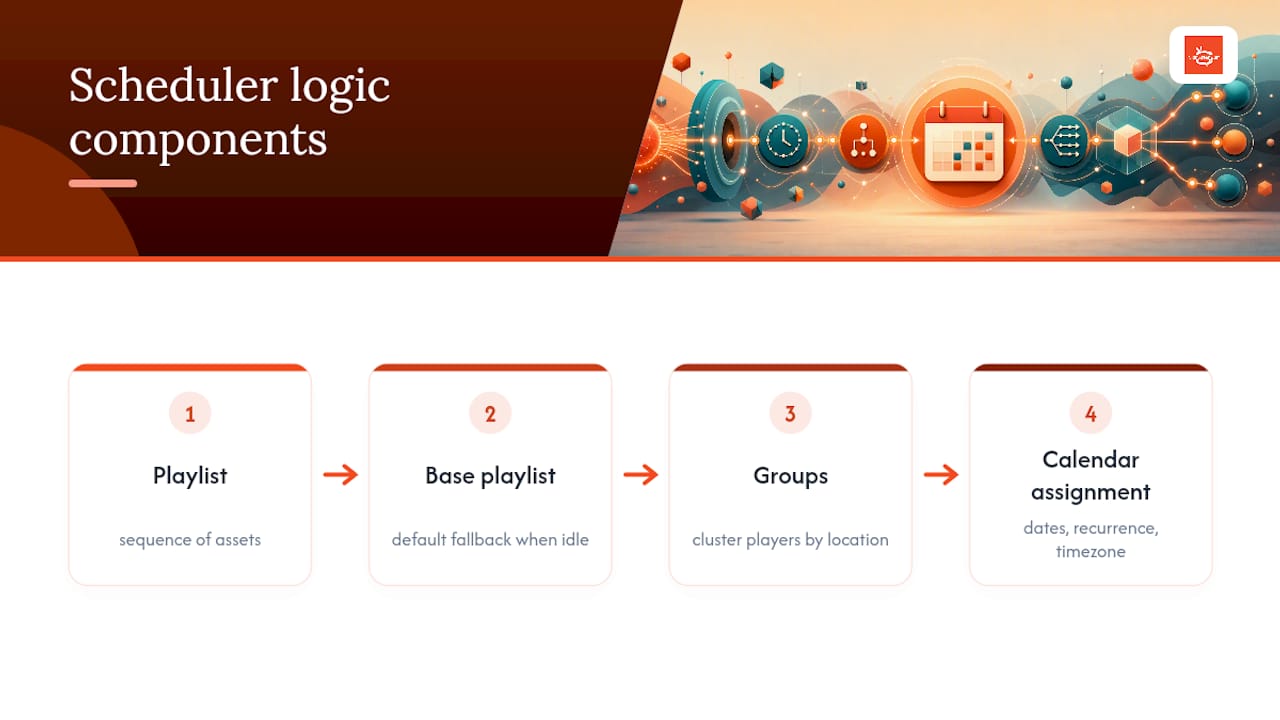
A playlist is a sequence of assets that plays in order. A base or default playlist is what runs when no scheduled content is active. It’s your safety net, and skipping it is the most common reason screens go blank.
Groups cluster players by location, department, or purpose so you assign one schedule to twenty screens instead of twenty separate configurations. Calendar assignment ties a playlist to specific dates or recurring patterns, with recurrence rules (every weekday, every Friday, the first of the month) and timezone settings that matter the moment you manage more than one location.
Which scheduling features actually matter for your business?
Not every scheduler feature deserves your attention equally. A few move the needle on daily operations, and a few are nice-to-haves you’ll rarely touch.
Dayparting and templates: build a recurring breakfast/lunch/dinner structure once, reuse it every week.
Folder-based scheduling: drop a new asset into a designated folder and it joins the rotation automatically, according to Vū Studio’s documentation, which cuts admin time on frequent creative refreshes.
Priority and override rules: define what wins when two schedules overlap.
Content expiration: set an end date so a promotion doesn’t linger past its relevance.
Offline caching: players store the current playlist locally so a lost connection doesn’t mean a blank screen.
Pro Tip: Set expiration dates on every promotional asset the day you create it, not the day it launches. It takes ten seconds and prevents last month’s discount code from haunting your lobby screen in March.
Sample scheduling scenarios for restaurants, retail, and lobbies
Concrete examples beat abstract rules. Here’s how three common business types might structure a week of content.
Restaurant dayparts: breakfast menu from 6:00 AM to 10:30 AM, lunch specials from 10:30 AM to 2:00 PM, dinner and drink promotions from 4:00 PM onward. A digital menu board built for these transitions keeps each daypart legible and on-brand.
Retail peak rotation: high-margin promotions rotate every 30 seconds during weekend foot-traffic peaks, while slower weekday afternoons show longer-form brand storytelling or loyalty program details.
Reception and lobby: a steady base playlist of wayfinding and company news, with calendar-range overrides for quarterly events, and single-date overrides for an all-hands or a VIP visit.
Seasonal campaigns work best as date ranges rather than manual reminders to swap content, and one-off events call for a single-date override that expires automatically once the day ends.
How do you build and publish a schedule step by step?
Follow this sequence and you’ll avoid the two most common mistakes: forgetting a fallback and publishing to the wrong screens.
Prepare your assets first: images, videos, or compositions sized correctly for your displays, organized into a playlist or folder.
Build day sequences and time slots. This is where dayparting lives. Set your breakfast, lunch, and dinner blocks, or your business-hours versus after-hours content, and define recurrence (daily, weekdays only, specific dates).
Assign sequences to calendar dates and pick your target screens or groups. An advanced scheduling workflow typically moves through a Day Sequence, then a Time Slot, then a calendar assignment, allowing weekday filters and open-ended “forever” ranges alongside one-time overrides.
Publish, then confirm. Check each player’s “last seen” timestamp and proof-of-play log to verify the content actually downloaded and ran, not just that you clicked publish.
Test a manual override on one screen before trusting it network-wide.
Pro Tip: Publish to a single test screen first, always. A five-minute delay catches formatting errors before they hit forty locations.
How does a scheduler resolve conflicting content?
Two schedules will eventually overlap, a seasonal campaign running the same week as a flash sale, and your scheduler needs a clear hierarchy to decide what wins.
The most reliable pattern, and the one TelemetryOS recommends for multi-location deployments, ranks priority in this order:
Manual single-date override beats everything else. Use it for genuinely one-off events.
Campaign or sequence schedules beat the base playlist but yield to manual overrides.
Base/default playlist fills every remaining gap.
Manual overrides are powerful precisely because they’re absolute, so use them sparingly and reserve them for events that genuinely need to interrupt everything else. Run a weekly check for overlapping date ranges and confirm every group still has a default playlist assigned. A missing fallback is the single most common cause of a blank screen.
Scheduling operational actions and handling offline players
Scheduling isn’t only about content. It also governs the hardware itself.
Sleep and wake actions: power displays down overnight and back on before opening, cutting runtime hours and extending hardware life. Vū Studio’s scheduler supports this alongside standard playback scheduling.
Expiry dates: attach an end date to every campaign so outdated promotions don’t linger after the sale ends.
Offline resilience: players cache the current playlist locally, so a dropped connection doesn’t mean a black screen, it means the last successfully downloaded content keeps playing.
Pro Tip: Check “last seen” status weekly, not just when something looks wrong. A player that’s been offline for three days is a problem you want to catch before a customer does.
A best-practices checklist for reliable scheduling
Good scheduling habits are what separate a network that runs itself from one that needs daily hand-holding. Industry practitioners consistently point to automation of both content and hardware actions as the difference between a maintenance headache and a system that just works.
Adopt clear naming conventions for playlists and sequences (“Lunch_MonFri_Spring26”) so anyone on your team can find and edit them fast.
Test on a staging screen before pushing changes network-wide.
Assign ownership and permission roles, who can publish, who can only view, so junior staff can’t accidentally overwrite a live campaign.
Keep a default fallback playlist assigned to every group, no exceptions.
Monitor proof-of-play and last-seen reports weekly rather than waiting for a customer to mention a blank screen. Further strategy on coordinating recurring campaigns is available from 16W Media Group’s content scheduling resources.
SignStream in practice: scheduling that shows measurable results
SignStream builds these principles directly into its platform: real-time updates pushed to any screen from any device, unlimited screen deployment, an ad exchange marketplace for cross-promotion, and analytics that track what’s actually working. One gym client using scheduled class displays reported a notable rise in class attendance after implementation.
The features covered above map directly onto what you’ll find in the platform:
Folder-based content inclusion for fast creative refreshes without rebuilding playlists.
Priority overrides for single-date events layered over recurring campaigns.
Scheduled power actions to cut runtime costs across every connected screen.
Three operational priorities worth acting on now
Start with repeatable dayparted templates before you touch anything else. Templates you can copy and adjust save more time than any one-off tweak ever will.
Automate power cycles next. Then measure everything with analytics, keep campaigns short, and revisit performance weekly rather than quarterly.
— DKS
Get scheduling running on your screens this week
Signstream turns the workflow covered above, dayparts, calendar overrides, priority rules, sleep and wake actions, into something you manage from your phone in minutes, not a technical project that needs an IT ticket. You get unlimited screen deployment at no extra charge, an ad exchange marketplace to monetize idle screen time, and analytics that show exactly which scheduled content drives results.

If you’re running multiple locations or just tired of manually swapping content, see how the platform works remotely and check whether your screen count qualifies for a trial. Businesses looking to earn from their existing screens can also explore the ad display network for cross-promotion revenue. Start with one location, build your base playlist and dayparts, and expand once you see the pattern working.
Where to go for deeper scheduler documentation
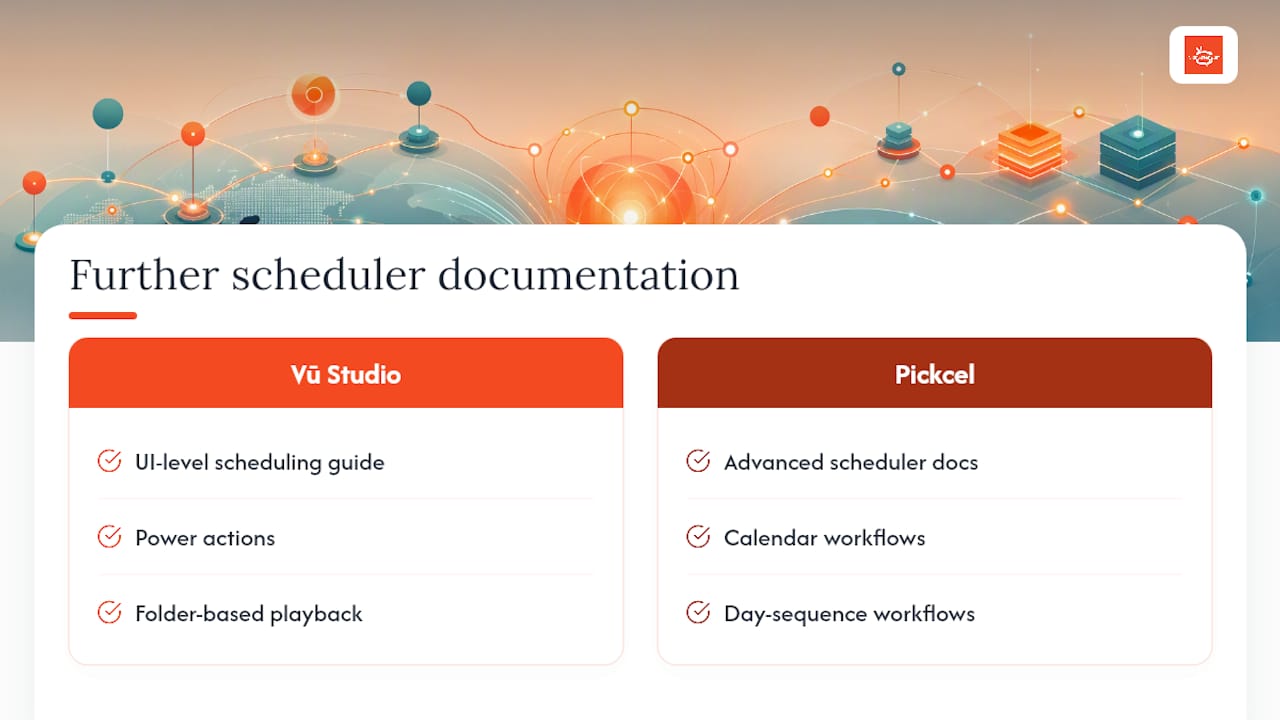
For UI-level configuration, review Vū Studio’s scheduling guide for power actions and folder-based playback, and Pickcel’s advanced scheduler documentation for calendar and day-sequence workflows.
Sources
Recommended
Comments