

Manage Office Screens Without IT: A Practical Guide
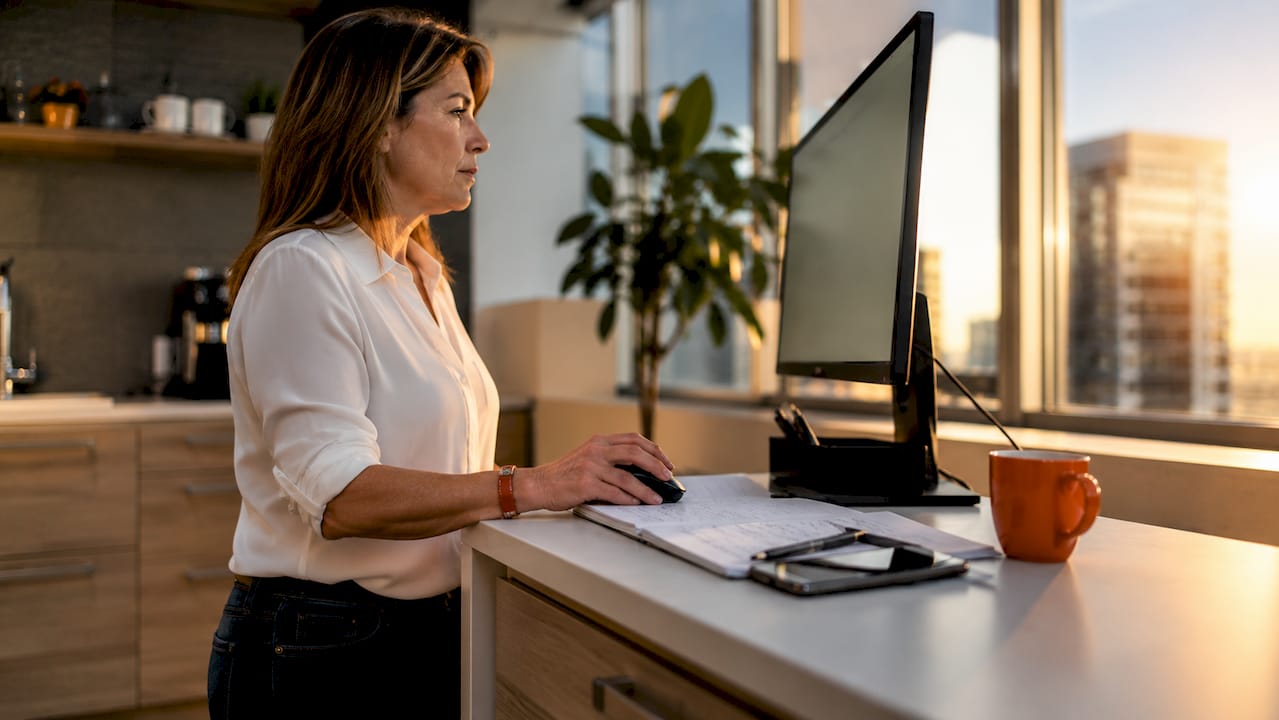
Managing office screens without IT is defined as the practice of configuring, updating, and controlling multiple display devices using non-technical workflows, cloud-based tools, and clear operational standards. Office managers who adopt this approach gain direct control over their displays without waiting on IT tickets or specialized staff. Dual-monitor setups boost productivity by 42% when managed correctly. That number only holds when screens are organized with purpose, not left to drift. The industry term for this discipline is display management, and it covers everything from physical placement to content scheduling. You do not need an IT background to do it well.
What are the prerequisites for managing office screens without IT?
The right hardware foundation makes everything else easier. You need screens with HDMI or DisplayPort inputs, reliable mounting hardware, and cables that match your display resolution. Standardizing on one monitor brand and model across your office is the single most underrated decision you can make. Standardizing hardware models dramatically reduces troubleshooting complexity in non-IT environments. When every screen behaves the same way, you only need to learn one set of settings.
On the software side, you do not need enterprise-grade tools. Browser-based control panels and cloud dashboards handle the heavy lifting for most offices. These platforms let you push content, schedule updates, and monitor screens from any device with an internet connection. Cloud dashboards enable non-technical users to manage all screens from one interface, eliminating the need for an IT team entirely.
Before you install anything, set up content templates and modular screen groupings. A template is a pre-built layout you reuse across screens. A modular grouping means you cluster screens by location or function, such as all reception screens in one group and all conference room screens in another. This structure cuts your management time significantly.
Hardware checklist before you start:
Screens with matching input types (HDMI or DisplayPort)
Adjustable mounts that allow tilt and height changes
A central device or cloud account to push content
Labeled cables and ports to speed up troubleshooting
A written record of each screen’s location, model, and assigned role
Pro Tip: Buy one extra unit of your standard monitor model and keep it on a shelf. When a screen fails, you swap it in within minutes instead of waiting days for a replacement order.
How do you assign screen roles to optimize office workflows?
Every screen in your office needs a single, defined purpose. Failing to assign a unique purpose to each screen leads to content scattering and constant context switching that destroys focus. Think of each screen as a physical workstation. You would not pile every task onto one desk, and you should not pile every data feed onto one screen.
Common functional roles that work well in office environments include:
KPI dashboard: Live metrics, sales numbers, or project status visible to the whole team
Communication feed: Internal announcements, meeting schedules, or HR updates
Reference content: Policies, process guides, or maps that staff check repeatedly
Customer-facing display: Promotions, wait times, or welcome messages in reception areas
The risk of ignoring this structure is real. When screens show everything, staff absorb nothing. Cognitive overload from unmanaged displays reduces the productivity gains you installed those screens to create. Screens that improve office productivity do so because they deliver the right information at the right moment, not because they show more.
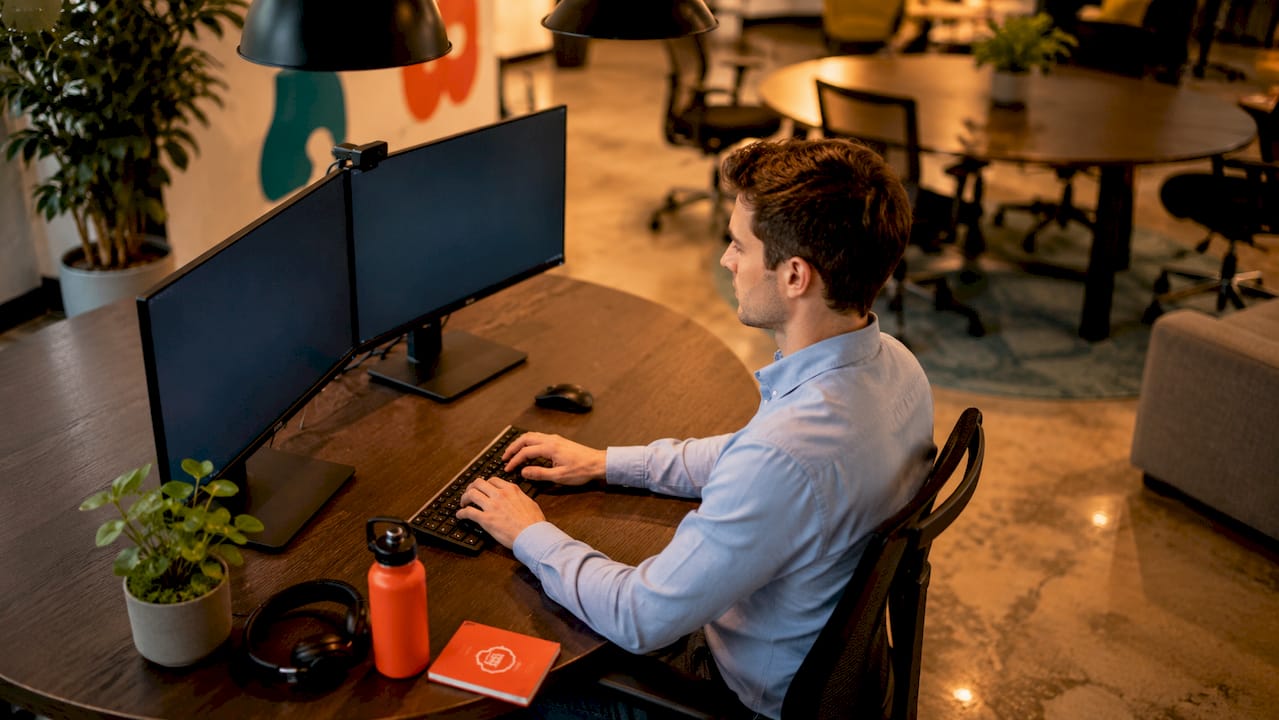
Physical ergonomics also belong in this conversation. The American Optometric Association recommends placing monitors 20–28 inches from the eyes to prevent eye fatigue. Secondary monitors should sit 20–30° inward so your neck stays neutral. Treat these angles as fixed rules, not suggestions.
Screen role | Recommended position | Content type |
Primary work screen | Directly in front, eye level | Active tasks, documents |
KPI dashboard | Secondary, slight angle | Live data, metrics |
Communication feed | Furthest from primary | Announcements, alerts |
Customer-facing display | Lobby or reception wall | Promotions, schedules |
Pro Tip: Label each screen with a small printed card showing its assigned role. New staff immediately understand the system, and you avoid the slow drift back to chaotic multi-use displays.
How do you set up centralized remote control without an IT team?
Centralized remote management means one person controls every screen in the office from a single browser tab. You do not need a server room or a network engineer. You need a cloud-based platform with a clear interface and a reliable internet connection. Centralized dashboards convert IT-heavy tasks into browser-based workflows that any office manager can run independently.
Follow these steps to get your system running:
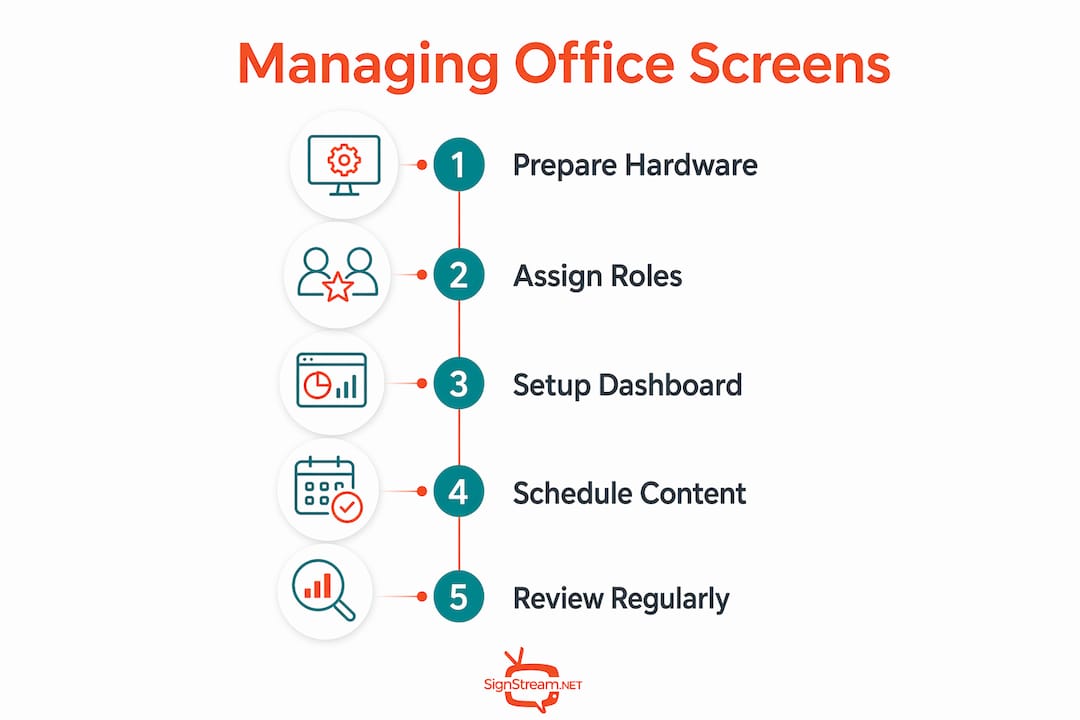
Group your screens by location and function. Create named groups in your dashboard, such as “Floor 2 Reception” or “Conference Room A.” This lets you push content to a specific area without touching unrelated screens.
Build your content library. Upload images, videos, and slide decks into the platform. Organize them by role so you can find the right asset in seconds.
Set a publishing schedule. Most cloud platforms let you schedule content to appear at specific times. Morning announcements go live at 8:00 AM and switch to afternoon updates at 1:00 PM automatically.
Enable automatic alerts. Proactive monitoring and alerts identify screen failures early, preventing unnoticed downtime. Set your platform to notify you by email or text when a screen goes offline.
Document every setting. Write down your group names, schedule logic, and login credentials in a shared document. This is the step most office managers skip, and it is the one that causes the most pain when someone is out sick.
The most common mistake in DIY display management is overcomplicating the workflow. Start with two or three screen groups and one weekly content update. Add complexity only after the basics run without issues. For offices managing screens across multiple locations, multi-location screen management follows the same grouping logic but requires a platform that handles location-level permissions.
A comparison of management approaches by complexity shows a clear pattern. Simple browser-based platforms with pre-built templates suit most offices. Custom-built solutions without dedicated engineers frequently fail for non-technical users because they require ongoing maintenance that office managers cannot provide. The simpler the tool, the more consistently it gets used.
How do you reduce distractions and physical strain in a multi-screen setup?
Physical comfort and content discipline work together. An ergonomically correct setup reduces fatigue, and a well-organized content strategy reduces mental noise. You need both to get the full benefit from multiple screens.
Start with the physical setup. Position your primary screen directly in front of you at eye level. Place secondary screens at a slight inward angle, no more than 30° from center. Keep all screens within the 20–28 inch viewing range recommended by ergonomics standards. Screens placed too far away cause you to lean forward. Screens placed too close cause eye strain within hours.
Notification management is the digital equivalent of physical ergonomics. The notification quarantine method works like this: place all communication apps, such as email and messaging tools, on your furthest screen. Disable badge notifications entirely on that screen. Notification anticipation degrades focus as much as the interruptions themselves. Removing the visual cue removes the mental pull.
Best practices for reducing distraction across office screens:
Assign one screen exclusively to passive reference content that does not require interaction
Turn off auto-play video on any screen visible from multiple workstations
Use a consistent color palette across all screen content to reduce visual noise
Schedule content transitions during natural break points, not mid-task
Pro Tip: Set a weekly 10-minute review to check that each screen still shows its assigned content type. Screens drift over time as staff add content informally. A short audit keeps the system honest.
For offices that want to go further, live news feeds on office screens can be scheduled to appear only during break periods, keeping the workspace focused during core hours. Unified communications platforms, such as those offered by Ventis Consulting, can integrate with your display system to push relevant alerts without creating notification overload.
Key Takeaways
Offices that assign clear roles to each screen, standardize hardware, and use cloud-based dashboards can control all their displays without any IT involvement.
Point | Details |
Standardize hardware first | One monitor model across the office cuts troubleshooting time and simplifies replacements. |
Assign one role per screen | Defined screen functions prevent content scatter and reduce cognitive overload for staff. |
Use cloud dashboards | Browser-based platforms let office managers schedule, push, and monitor content remotely. |
Apply ergonomic placement | Keep screens 20–28 inches away and angled inward to prevent eye and neck strain. |
Document everything | Written records of groups, schedules, and logins keep the system running when key staff are unavailable. |
Screen management is an operations problem, not an IT problem
Office managers who wait for IT to fix their display setup are solving the wrong problem. Screen management belongs in operations, not in the IT queue. The moment you treat your screens as physical workspace zones with defined roles and scheduled content, the technical complexity drops to near zero.
I have seen offices with a dozen screens running perfectly on a single cloud dashboard managed by one administrator with no technical background. The secret is always the same: simple tools, documented workflows, and a clear rule that every screen has one job. The offices that struggle are the ones that bought expensive custom systems they cannot maintain or left screens unmanaged until they became a source of noise rather than information.
The cloud-based signage approach removes the dependency on specialized staff entirely. You schedule content on Monday morning, and it runs all week without a single IT ticket. When something breaks, your documentation tells the next person exactly what to do. That is not a technology win. That is an operations win.
The uncomfortable truth is that most offices overcomplicate this. They buy platforms with features they will never use, skip the documentation step, and then call IT when the system feels unmanageable. Start small, stay consistent, and treat your screen setup the same way you treat your filing system: organized, labeled, and reviewed regularly.
— DKS
Signstream makes office screen control straightforward
Office managers who want to control their displays without technical complexity have a direct path forward with Signstream. The platform runs entirely from a browser, requires no IT setup, and lets you push content to unlimited screens from any device.

Signstream’s cloud-based digital signage platform is built for exactly this use case: non-technical users managing multiple screens across one or more locations. You can group screens by area, schedule content by time of day, and monitor every display from a single dashboard. Signstream clients have reported a 25% rise in class attendance after implementation, showing what organized, purposeful screen content delivers in practice. If you want to see how it works before committing, a free consultation walks you through the setup for your specific office layout.
FAQ
Can I manage multiple office screens without any IT skills?
Yes. Cloud-based display management platforms are designed for non-technical users and require only a browser and an internet connection to operate.
How many screens can one office manager realistically control?
One administrator can manage dozens of screens using a cloud dashboard with grouped screen management and scheduled content. The key is organizing screens into named groups rather than managing each one individually.
What is the safest monitor distance for daily office work?
The American Optometric Association recommends placing monitors 20–28 inches from your eyes to prevent eye fatigue during extended work sessions.
How do I stop screens from showing outdated content?
Set a recurring content schedule in your cloud dashboard and enable automatic alerts for offline screens. A weekly 10-minute audit of each screen’s assigned content keeps the system current.
Does managing office screens remotely require special hardware?
No special hardware is required beyond a standard commercial display with an HDMI or network input. Most cloud-based platforms connect to screens through a small media player or a built-in smart TV interface.
Recommended
Comments