

A Digital Signage Content Workflow That Keeps Screens Fresh
A digital signage content workflow is the repeatable, role-based process that gets the right message on the right screen at the right time, consistently, without someone scrambling every Monday morning. It runs in seven steps: plan, create, approve, schedule, publish, monitor, and iterate. Skip any one of them and screens either go stale or turn into a mess of conflicting messages.
Two numbers should anchor how you build this: viewers form an impression of signage content in a 3 to 8 second attention window, so every asset needs to work fast, and every piece of scheduled content needs an expiry or auto-archive rule so nothing outlives its relevance.
Plan: define what needs to be said, what, where, and when
Create: build the asset (in-house, templated, or outsourced)
Approve: someone signs off before it goes live
Schedule: set start and end dates, assign to playlists
Publish: push to targeted screens or zones
Monitor: confirm playback, check engagement signals
Iterate: update based on what’s working
Key Takeaways
A digital signage content workflow succeeds when named owners, templated creation, and automated expiry rules replace manual, ad hoc screen updates.
Point | Details |
Assign named owners | Give one person, not a committee, responsibility for each screen group. |
Build a template core | 5 to 10 templates cover most routine content needs. |
Automate expiry | Every scheduled item needs a start and end date to prevent stale content. |
Test your CMS | If an untrained content owner can’t schedule content in 15 minutes, switch platforms. |
Use SignStream for execution | SignStream combines templates, automation, and role-based access with an ad exchange for monetization. |
Table of Contents
What Does a Digital Signage Content Workflow Actually Cover?
The workflow spans three distinct layers, and confusing them is where most digital signage management breaks down: content (what appears on screen), infrastructure (the players, network, and displays that show it), and playback reliability (whether it actually renders correctly, on time, every time). Each layer needs a different owner.
IT should manage infrastructure. Business teams must own content for each screen or zone they’re responsible for. This split matters because content creation and ownership belong with the people who understand the local messaging need, not the people who racked the media players. A gym manager knows when the 6 a.m. spin class needs promoting. IT knows why the lobby screen went dark. Neither should be doing the other’s job.
Build your role structure around four functions:
Content owner: the named person accountable for what plays on a specific screen or screen group
Reviewer/approver: checks brand, accuracy, and compliance before anything publishes
Publisher: has scheduling permissions and pushes approved content live
Admin: manages user access, templates, and system-level settings
Pro Tip: Assign one named content owner per screen group, not a committee. When three people are “responsible” for a screen, nobody actually checks it, and that’s how a Fourth of July promo is still running in September.
How Do You Build the Core Workflow Step by Step?
A workflow only holds up if each stage has a clear output and a clear owner. Here’s how the seven-step sequence actually plays out in practice:
Plan — The content owner identifies the message, audience, and screen targets for the coming cycle. Output: a content brief or calendar entry. Typically takes a day or less for routine content.
Create — Design happens using a template or custom build. Output: a finished asset sized correctly for the target displays.
Approve — A reviewer checks the piece against brand standards and factual accuracy. Output: sign-off or requested revisions. Budget 24 to 48 hours for anything customer-facing.
Schedule — The publisher sets start and end dates, assigns the content to the right playlist, and confirms targeting.
Publish — Content pushes to live screens, ideally after a preview on a staging player.
Monitor — Someone checks that playback matches what was scheduled and watches for engagement or error signals.
Iterate — Based on performance or feedback, content gets refreshed, replaced, or retired.
Before anything goes live company-wide, preview it on a staging player or test screen. This catches formatting errors, wrong aspect ratios, and outdated pricing before customers see them. Every piece of scheduled content needs a defined expiry date and a rollback plan in case something breaks mid-cycle.
Publishing mechanics matter more than most teams expect. You’re not just pushing a file. You’re setting targets (which screens or zones), assigning playlists, and often applying dayparting rules so breakfast content doesn’t run at dinner. Players should cache content locally so a network hiccup doesn’t leave a blank screen.
Add these to your standard operating procedure:
Staging preview required before any company-wide push
Expiry date mandatory on every scheduled item, no exceptions
QA checklist: correct aspect ratio, no typos, links tested, brand colors verified
Rollback plan documented for every major campaign
Which Content Creation Method Fits Your Team?
Most organizations land on one of three models, and picking the wrong one is the fastest way to burn out your content owner or blow your budget.
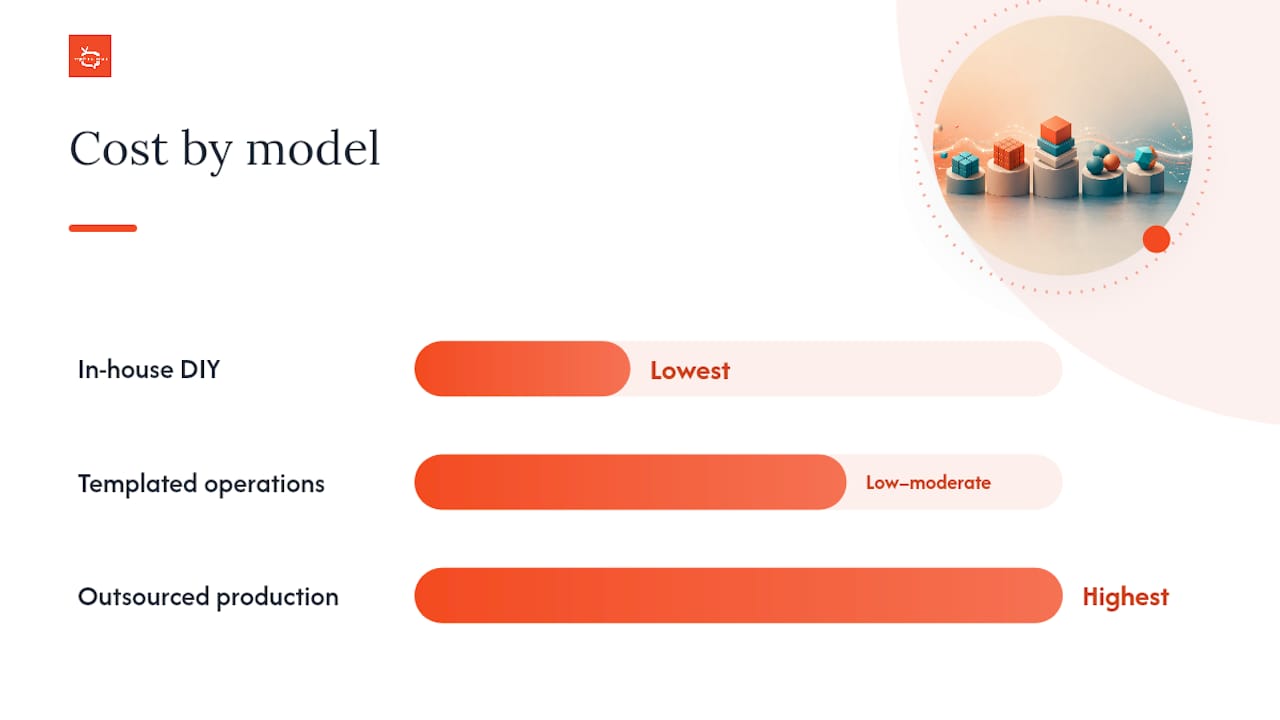
In-house DIY works when someone on staff has basic design skills and the cadence is manageable. It’s the cheapest option and the fastest to turn around simple updates, but quality varies and it doesn’t scale well past a handful of screens.
Templated operations put business teams in control using pre-built templates where they swap text, images, and prices without touching layout. This is the sweet spot for most signage networks: fast, consistent, and it doesn’t require design skills to execute.

Outsourced production brings in an agency or freelance designer for polished, bespoke creative. Quality tends to be highest, but turnaround is slower and cost climbs fast if you need frequent updates. A firm like CloudSprout can handle overflow creative work when internal capacity runs thin.
Model | Speed | Cost | Best for |
In-house DIY | Fast for simple edits | Lowest | Small networks, basic updates |
Templated operations | Fast, consistent | Low to moderate | Multi-location, recurring content |
Outsourced production | Slower turnaround | Highest | Brand campaigns, complex creative |
Decision criteria come down to four questions: how often does content change, how much creative variability do you need, are there regulatory or compliance requirements, and what’s your actual headcount and budget? Most teams should build 5 to 10 templates before chasing anything custom.
What Should You Require From a CMS?
The platform holding your workflow together needs specific features or it becomes the bottleneck instead of the solution. Non-negotiables include role-based access control, scheduling with hard start and end dates, a searchable content library, device grouping by location or zone, remote health monitoring, API connections for live data, local caching for offline resilience, and analytics that show what’s actually playing where.
Before you commit to any platform, run this test: hand the CMS to the actual person who’ll update screens weekly and time how long it takes them to schedule a piece of content unaided. If it takes longer than 15 minutes, the platform is too complicated for daily operational use, no matter how many features it advertises.
Hosting models split three ways:
Cloud-hosted — Easiest to scale, minimal IT overhead, updates from any device. This is where most modern platforms, including Signstream, operate.
On-premise — More control and often required for strict compliance environments, but heavier IT burden and slower to scale.
Hybrid — Local processing with cloud management, useful when bandwidth is inconsistent but centralized control still matters.
When evaluating options, prioritize ease of use for untrained staff, integrations with calendars and business intelligence tools, automated expiry so nobody manually deletes stale promos, and a rollback option when a push goes wrong.
How Should You Organize Assets and Templates?
Chaos creeps in fast once you’re managing more than a handful of screens, and it usually starts with a messy asset library. Structure folders by content type first, then location, then season: something like Promotions > Downtown-Location > Spring-2026. File names should be specific and dated, like “Spring-Sale-March-2026.png” rather than “flyer-final-v2-USE-THIS.png.”
Template strategy follows the same logic as content creation: 5 to 10 core templates will cover most recurring needs, and each one should be parameterized so a data feed can drop in prices, dates, or names without touching the layout. This is what separates a scalable system from one that requires a designer for every price change.
Organize folders by content type, then location, then season
Use consistent, dated file names across the whole library
Parameterize templates so data fields update without redesign
Archive retired content instead of deleting it
Use versioned filenames or built-in CMS versioning to track changes
Pro Tip: Archive, never delete. A “retired” holiday template from last December is often the fastest starting point for this year’s version, and you’ll want the record if a legal or compliance question ever comes up.
How Do Playlists and Scheduling Actually Work?
Playlist length and slide duration decide whether your screen looks professional or like a slot machine. Keep playlists to roughly 8 to 15 items, with each slide holding for 4 to 12 seconds depending on content density. That range respects the 3 to 8 second attention window most viewers actually give a screen before looking away.
Merging global and local content requires a layering approach: company-wide messaging sits on a shared layer, and individual locations override or supplement it with local promotions, hours, or events. Priority rules should be explicit, meaning corporate safety announcements always outrank a local happy-hour promo, for example.
Dayparting is where scheduling gets genuinely smart. Restaurants run breakfast menus until 11 a.m. and switch to lunch specials automatically. Gyms might push class schedules in the morning and evening membership offers at night, a pattern worth studying if you run signage for a restaurant with shifting daily menus.
Keep playlists to 8 to 15 items for most environments
Match slide duration (4 to 12 seconds) to content complexity
Use dayparting for time-sensitive messaging like menus or shift changes
Preview content at actual viewing distance and lighting before publishing
Always preview at the real viewing distance and lighting the screen sits in. A menu board that reads perfectly on your laptop can be unreadable under fluorescent lights from ten feet away.
Can You Automate Content Updates With Live Data?
Automation is what separates a mature digital signage content strategy from one that requires manual babysitting every day. Three models exist: schedule-based (content changes on a timer), data-driven (a spreadsheet or API feeds a template), and event-driven (a trigger like a webhook fires an update in real time).
Common live feeds worth connecting include calendars for meeting-room displays, inventory or point-of-sale data for pricing boards, KPI dashboards for internal comms, weather feeds for relevant local content, and social recognition walls for user-generated engagement. A content pipeline should match its automation level to the content type: manual for one-off creative campaigns, semi-automated for menu boards, and fully automated for anything that changes constantly, like exchange rates or live scores.
Well-run networks tend to lean heavily on this kind of automation. A mix of roughly 60 to 70% automated feeds paired with scheduled campaign content cuts manual maintenance dramatically while keeping screens current.
Match automation level to content volatility (manual, semi-automated, fully automated)
Connect calendars, POS systems, and KPI dashboards where relevant
Require template-level approval before a data feed goes live
Validate data quality before it reaches a customer-facing screen
Pro Tip: Limit API credentials to the minimum needed for each feed, and monitor feed health separately from screen health. If a feed fails, your player should fall back to cached content instead of showing a broken template or a blank screen.
How Do You Govern a Workflow as Screen Count Grows?
Governance is what keeps ten screens from becoming a hundred screens of chaos. The model that works: named content owners per zone, a monthly review cadence to catch drift, a clear escalation path when something’s wrong, and a lightweight SLA for turnaround time, say, 24 hours for routine updates and same-day for urgent pushes.
Approval flows shouldn’t be one-size-fits-all. Template-based updates (swapping a price or date) can move through a fast-path approval, while new creative campaigns get full review. Standardizing hardware models across locations pays off here too, since fewer device variants mean fewer drivers to manage and far simpler firmware rollouts.
Assign a named owner and monthly review cadence per screen group
Fast-path approval for template swaps, full review for new campaigns
Standardize hardware to simplify remote troubleshooting
Set SLAs: 24 hours for routine content, same-day for emergency pushes
Pro Tip: Write your SLA down even if it’s informal. “Routine content updates within 24 hours” gives your team a target and gives you a way to catch when the system is slipping.
What KPIs and Timelines Should You Expect?
Track content freshness (the percentage of active screens with a valid expiry date set), playlists updated per cycle, display uptime, and engagement proxies like event attendance or intranet click-through. If you’re monetizing screens through an ad exchange, ad revenue becomes a core KPI too.
Review these weekly on a simple dashboard, and reserve monthly for a deeper look at what’s actually driving engagement versus what’s just filling space.
Rollout timelines follow a predictable arc: pilot on a small number of screens first, expand once the workflow proves stable, then scale company-wide. Major cost drivers include hardware and players, CMS licensing, creative production hours, and integration work for live data feeds.
Phase | Timeframe | Focus |
Pilot | Weeks 1 to 4 | Test workflow on 2 to 5 screens |
Scale | Days 30 to 90 | Expand to full location, refine templates |
Optimize | Months 4 to 6 | Add automation, review KPIs, adjust SLAs |
Track content freshness, uptime, and engagement weekly
Reserve deeper KPI review for a monthly cadence
Budget for hardware, licensing, creative hours, and integrations separately
What’s a 90-Day Rollout Checklist Look Like?
A minimum viable launch doesn’t require every feature built out on day one. Get these pieces in place first, then iterate:
Inventory every screen and confirm which zone or group it belongs to
Assign a named content owner to each screen group
Build 5 to 10 core templates covering your most common content types
Connect at least one live data feed (calendar, POS, or inventory)
Schedule your first playlist with expiry dates on every item
Verify local caching works by testing playback during a simulated outage
For the 90-day arc: weeks one through four focus on inventory, ownership, and template creation. Days 30 through 60 add your first automated feed and expand beyond the pilot screens. Days 60 through 90 bring in full monitoring, KPI tracking, and SLA enforcement. After go-live, confirm playback matches the schedule, check that expiry dates are firing correctly, and test the rollback process at least once before you need it for real.
How SignStream Runs This Workflow Internally
SignStream applies this exact model with its own client rollouts. For one elite sports club client, the process started with assigning a single content owner per location, building a small template library for class schedules and promotions, and connecting a live feed for class times so the content owner never had to manually update a slide again.
The workflow shifted from reactive, someone noticing a screen was stale, to proactive, with expiry rules and automated feeds doing the routine work. That freed the content owner to focus on the promotions that actually needed a human’s judgment.
A practitioner’s take on where workflows fail
The three mistakes I see most often: no named owner (screens go stale because nobody’s job it is to check), no expiry dates (that Fourth of July promo running in October), and an overcomplicated CMS nobody wants to open. Fix each with the opposite: one name per screen, mandatory expiry on every schedule, and a platform your least technical staffer can use in 15 minutes.
My honest take on governance versus speed: template-level approval is the compromise that actually works. Let routine swaps move fast and save real review for anything new.
Get Your Content Workflow Running With SignStream
SignStream is built around the exact workflow this guide describes: named content owners, parameterized templates, automated scheduling with expiry rules, and role-based permissions so IT and business teams stay in their own lanes without stepping on each other.

Beyond the core platform, SignStream’s ad display network lets you turn idle screen time into a revenue line through cross-promotion with other local businesses, something a standard CMS simply doesn’t offer. Updates push instantly from any device, with unlimited screens included at no extra charge, so scaling from a pilot to a full location network doesn’t mean renegotiating your plan every time you add a display.
If your current setup requires a design degree to schedule a price change, it’s worth seeing what a purpose-built platform looks like in practice. Start a free trial and run the 15-minute test yourself with your actual content owner at the keyboard.
Frequently Asked Questions
What is the difference between digital signage management and content strategy? Digital signage management covers the full operational system, hardware, network, and playback reliability. Content strategy is the subset focused on what messages appear, when, and why. Both need to work together, but they usually have different owners.
How often should signage content be updated? It depends on the content type. Menu boards or promotions need weekly or even daily updates, while brand or wayfinding content can last months. The real rule is that every piece needs an expiry date, regardless of how often you touch it.
What’s the fastest way to start automating digital signage? Connect one live data feed first, a calendar or inventory system, to a single parameterized template. Prove that one automation works before layering on more feeds.
Do I need separate teams for IT and content? Not necessarily separate teams, but separate responsibilities. IT should own infrastructure and playback reliability. Business teams should own what displays and when, even if it’s the same small group wearing two hats.
How many templates does a mid-sized signage network actually need? Most networks run well on 5 to 10 core templates that cover promotions, events, menus, and announcements, with bespoke design reserved for major campaigns.
Sources
Digital Signage Content Strategy: A Practical Guide for IT Teams
Digital Signage Content Management: Workflow, Tools, and … - Digital Signage Hub
How to Build a Scalable Digital Signage Solution (Complete Guide)
Digital Signage Content: Strategy, Creation & Management Guide
Content Pipeline — From Creation to Screen — Digital Signage Knowledge | Media La Vista
Recommended
Comments